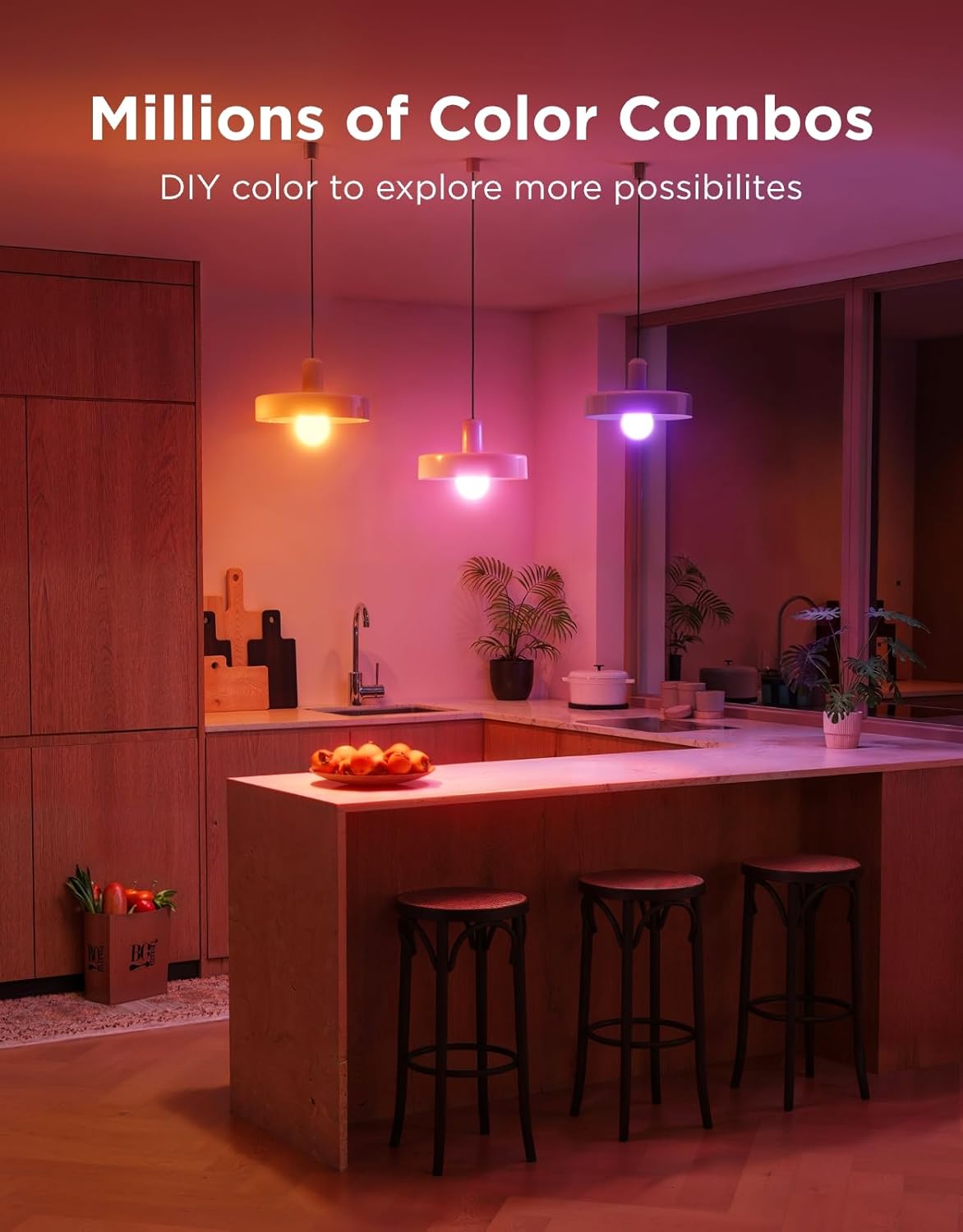
You bought the smart bulbs. You installed them, said “Hey Alexa, turn on the lights,” and it worked. Satisfying for about a day — and then they’ve been sitting on “100% bright white” ever since, because getting further than that felt like homework. This guide is the homework, done for you.
Smart bulbs are light bulbs with a built-in wireless radio (usually Wi-Fi, Zigbee, or the newer Matter protocol) that let you control them from an app, a voice assistant, or an automated schedule. The part most owners skip: these same apps let you program scenes — saved combinations of brightness and color temperature (the warmth or coolness of the light, measured in Kelvin) — and schedules that trigger those scenes automatically. That’s where the real value lives. This guide walks you through setup room by room, flags the platform-specific gotchas worth knowing before you hit them, and closes with answers to the questions buyers actually ask in reviews.
The Setup Mindset Shift: Scenes Before Schedules
Most smart bulb apps lead with schedules — pick a time, pick a brightness, done. That’s fine, but schedules that reference a scene you’ve already built are dramatically more useful than schedules that just set a raw brightness number. Think of it this way: a scene is a saved lighting state with a name (“Evening Wind-Down,” “Desk Work,” “Movie Mode”), and a schedule is the trigger that fires it.
Build the scenes first. Then assign them to schedules.
Why this matters by brand:
- Philips Hue calls these “Routines” in its app and allows a routine to call any saved scene. The ultra-low dimming floor — down to 0.2% brightness, per Philips’ published specifications — makes Hue’s nighttime scenes genuinely different from what cheaper bulbs can deliver. Wirecutter’s review of smart bulbs notes this sub-1% dimming as a meaningful differentiator for bedroom and nursery use cases where any bright flash on a restoration is a real problem.
- Kasa (TP-Link) stores scenes per-device or per-group and ties them to schedules cleanly. Reviewers across aggregated listings consistently flag the sunrise alarm as the feature that converts skeptics — a schedule that ramps from 1% to 100% over 20–30 minutes, mimicking dawn.
- Tapo and Govee use similar scene-then-schedule logic, but Govee’s out-of-box default color temperature skews noticeably cool — owners repeatedly report it reads as “ugly white” or harsh under 5000K out of the box. The fix is immediate: open the Govee app, navigate to the bulb settings, and manually set a warm white scene (2700K–3000K) as the default before you build any schedules.
- Linkind Matter bulbs attract a specific buyer: someone already running a mixed-brand smart home who needs gap-fill bulbs that won’t introduce another proprietary app. Matter certification means these bulbs pair directly to your existing home hub — whether that’s Apple Home, Google Home, or Amazon Alexa — without a separate bridge.
By the numbers:
| Brand | Min. Dimming Floor | Protocol | Bridge Required? |
|---|---|---|---|
| Philips Hue (Color) | 0.2% | Zigbee / Matter | Optional (Bridge expands features) |
| Kasa (KL series) | ~1% | Wi-Fi | No |
| Tapo (Matter models) | ~1% | Matter / Wi-Fi | No (uses existing hub) |
| Govee | ~1% | Wi-Fi / BLE | No |
| Linkind Matter | ~1% | Matter | No |
Sources: published manufacturer specifications as of Q1 2026.
Room-by-Room Scene and Schedule Logic
Kitchen
The kitchen needs the widest swing of any room: bright task light (4000K–5000K, 80–100% brightness) for cooking prep, and a softer ambient mode (2700K–3000K, 30–50%) for eating or late-night snacking.
Recommended scene stack:
- Morning Prep — 5000K, 100%, triggered at your alarm time
- Cooking — 4000K, 90%, manually activated or tied to a “cooking” routine
- Dinner Ambient — 2700K, 40%, triggered ~30 minutes before your usual dinner time
- Late Night — 2200K, 10%, triggered at 10 PM or after a sunset offset
The sunset-offset trigger (available in Kasa, Hue, and Tapo apps) automatically adjusts your schedule with the season so you’re not manually updating it when daylight saving time shifts. This Old House’s smart lighting overview explicitly recommends sunset-offset scheduling for any room where you want the light to track natural light patterns — the kitchen and dining area are the primary candidates.
Living Room / Dining Room
This is where scenes earn their keep. Most households run three modes in this space: daytime neutral, evening social, and screen/movie mode.
Govee owners: Build your warm scene first (2700K, 60%) and save it as “Default Evening” before doing anything else. Then set a schedule to trigger it at 6 PM daily. This bypasses the cold-white-on-restore problem that reviewers cite most frequently.
Philips Hue owners: The “Relax” and “Dimmed” preset scenes in the Hue app are genuinely well-calibrated starting points — no need to build from scratch. What Hue adds that other brands don’t: the ability to have a room’s bulbs ramp down gradually over a two-hour “wind-down” routine without any additional input from you. Architectural Digest’s coverage of smart home lighting trends through 2025 identifies this gradual dimming-to-warm behavior as the feature luxury smart home buyers cite most when explaining why they stayed in the Hue ecosystem rather than switching to cheaper alternatives.
Bedroom
The bedroom is where the Hue dimming floor becomes a genuine differentiator rather than a spec-sheet point. If you’re using Govee, Kasa, or Tapo in a bedroom, set your nighttime scene to the lowest available brightness (usually around 1%) at 2200K. That’s workable. But if a Hue bulb at 0.2% means you can navigate without waking a partner, that gap has real-life value.
Sunrise schedule logic (Kasa-specific):
- In the Kasa app, navigate to Schedules → Add Schedule
- Set a “Sunrise Alarm” schedule: start at 1% / 2200K, ramp to 100% / 3500K over 30 minutes
- Tie it to weekdays only; keep weekends on a separate, later schedule
Reviewers across Kasa’s B11 and KL130 bulb lines consistently identify this as the feature that gets the most “I didn’t know it could do that” reactions from guests and household members — but also the feature most users find buried in the app weeks after purchase.
Home Office / Desk
Task lighting wants neutral to cool (3500K–4500K), high brightness during work hours, with a deliberate wind-down in the late afternoon to avoid suppressing the melatonin that helps you sleep. Apartment Therapy’s scene-setup coverage recommends a “Transition” scene triggered at 4:30–5 PM — stepping down to 3000K and 70% — as a productivity-closing cue that also supports circadian rhythm.
Tapo Matter note: Tapo’s Matter-certified bulbs became a popular switch-from-Kasa option specifically because of pairing stability with Google Home. Buyers who experienced dropped pairings with non-Matter Wi-Fi bulbs report Matter certification as the reliable fix — the direct hub connection removes the cloud-dependency failure point that causes most pairing drops.
Platform Compatibility and the “Both Assistants” Question
One of the most common questions in smart bulb reviews: Can I use Govee or Kasa with both Alexa and Google Home simultaneously?
The answer is yes for most Wi-Fi bulbs, with a caveat. Both Govee and Kasa officially support Alexa and Google Home as parallel integrations — you can link the bulb’s native app to both assistant accounts and control from either. The catch is that schedules and scenes live in the native app (Govee Home or Kasa), not in Alexa or Google Home directly. Voice commands from either assistant work, but automated scheduling requires setup in the native app.
Matter-certified bulbs handle this more cleanly: they join your home’s Matter fabric once and become natively visible to any certified platform — Alexa, Google Home, Apple Home, or SmartThings — without requiring a separate app linkage for each.
The Philips Hue Bridge question: You do not need the Hue Bridge to use schedules with Hue bulbs. Hue’s Bluetooth mode, accessible via the Hue Bluetooth app, supports schedules and scenes for up to 10 bulbs directly from your phone. The Bridge unlocks remote access (away from home), multi-room group control, Hue Entertainment sync, and full Alexa/Google Home integration with richer scene support. For a single room with 2–4 bulbs, Bluetooth-only is a legitimate starting point. For a whole-home deployment, the Bridge is practically required.
Why Bulbs Lose Pairing After a Router Reset — And How to Prevent It
The most-asked troubleshooting question across all four brands: Why did my bulbs drop off the network after I reset my router?
Wi-Fi smart bulbs pair to a specific network name (SSID) and password. When a router reset changes either — even if you reuse the same name — bulbs lose the stored credential and go offline. The practical fix: after any router change, you’ll need to re-pair bulbs through their native app’s “Add Device” flow. Some bulbs can be bulk-re-added if you kept them on the same network name with the same password.
Prevention: Use a dedicated IoT SSID (2.4 GHz) with a stable name and password that you never change, separate from your main network. This is standard practice in any serious smart home build — Wirecutter’s smart home setup guidance calls a stable 2.4 GHz IoT VLAN one of the three foundational decisions that prevent the majority of smart-device support headaches.
Frequently Asked Questions
Can I use Govee or Kasa bulbs with both Alexa and Google Home at the same time? Yes. Both brands support parallel integrations with Alexa and Google Home through their respective native apps. Link each assistant separately in the Govee Home or Kasa app. Note that scenes and schedules are managed in the native app, not the assistant.
Do I need the Philips Hue Bridge to use schedules, or can I just use Bluetooth? You can use schedules via Bluetooth without the Bridge for up to 10 bulbs. The Bridge adds remote access, richer platform integration, and whole-home group control — worthwhile for any deployment beyond a single room.
Why did my smart bulbs lose their pairing after my router was reset? Bulbs store your Wi-Fi credentials locally. A router reset that changes the network name or password requires re-pairing. Setting a permanent IoT SSID with a fixed password prevents this from recurring.
Can I set bulbs to a specific warm white automatically every evening without using the app each time? Yes — this is exactly what scene-based scheduling is for. Build a “Warm Evening” scene at 2700K and your preferred brightness, then create a daily schedule to trigger it at a set time or at sunset offset. Once built, it runs without any app interaction.
Will Matter-certified bulbs work if I switch smart home platforms later? Yes. Matter certification is explicitly designed for platform portability. A Matter bulb that today lives in Google Home can be migrated to Apple Home or Amazon Alexa without re-flashing or hardware changes — it rejoins the new platform’s Matter fabric through standard commissioning.
How do I stop my smart bulbs from defaulting to bright white every time power is restored? This is a firmware behavior most brands allow you to override. In Govee Home, go to device settings and set “Power-on State” to your preferred scene. Kasa and Tapo have the same setting labeled “Default State” or “Power-on Behavior.” Set it to your warm evening scene and bulbs will restore to that state after any power interruption — instead of blasting 100% cold white at 2 AM.